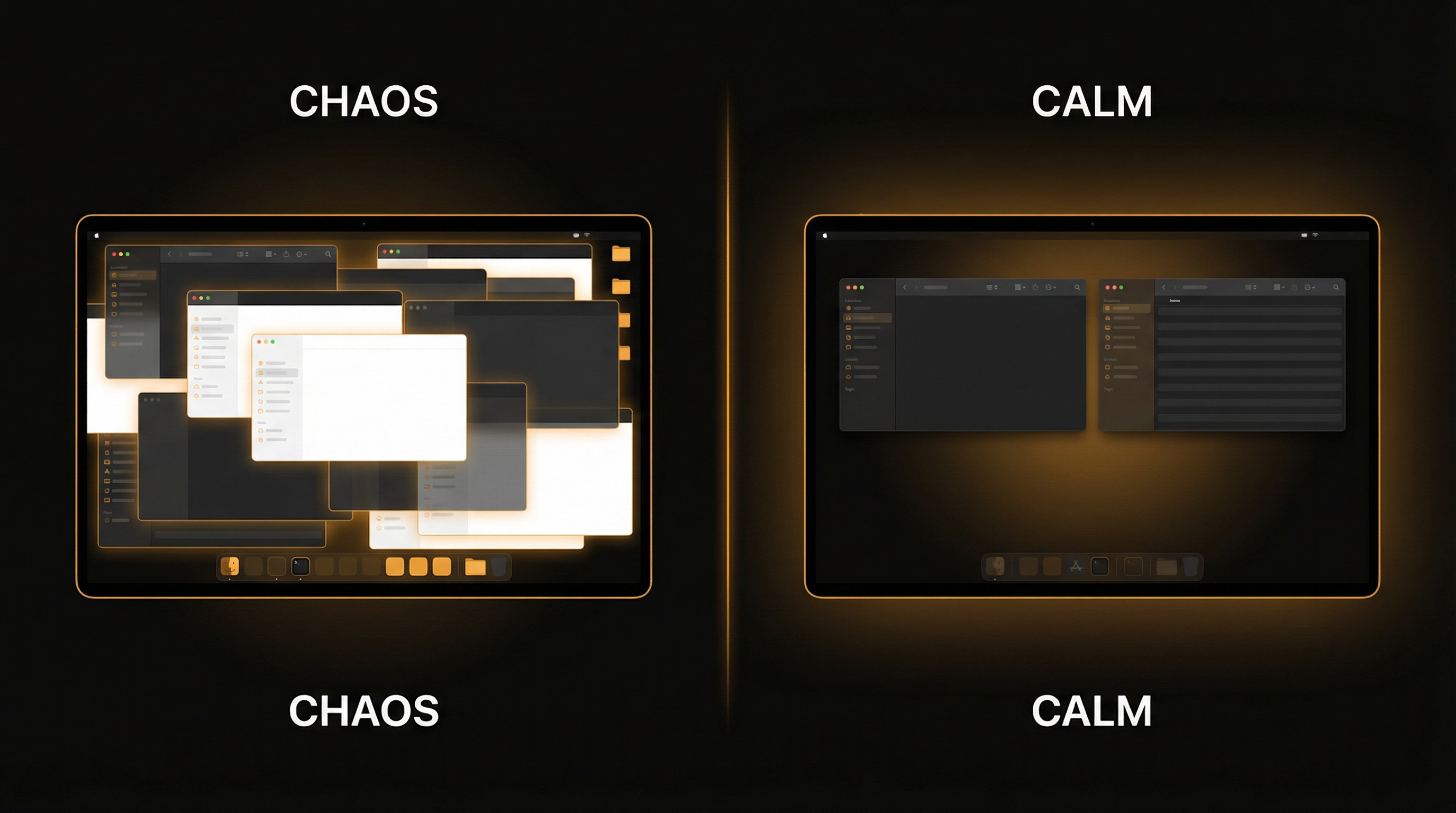
Right now, how many windows do you have open? If you're like most Mac users, the answer is somewhere between 10 and 20. A study by the Nielsen Norman Group found that knowledge workers routinely have 10-15 application windows and browser tabs active simultaneously. Power users often exceed 30.
The problem isn't that you opened too many windows — it's that macOS gives you almost no help managing them once they're open. Windows pile up behind each other, lose context, and create a cluttered landscape where finding anything requires either frantic Cmd+Tab cycling or a Mission Control fly-over that looks like a Where's Waldo puzzle.
This guide covers every approach to solving the window clutter problem on Mac — from built-in macOS features to dedicated third-party tools — and introduces a fundamentally different strategy: using visual hierarchy instead of spatial organization.
The Window Accumulation Problem
Windows accumulate for good reasons. You opened that browser tab because you needed a reference. You left Slack open for messages. Mail is running for incoming requests. Your code editor, terminal, Figma, Notes, Calendar, and a PDF you're referencing are all legitimately in use — or at least they were at some point in the last few hours.
Research from Microsoft Research found that the average knowledge worker switches between tasks every 3 minutes, with each switch potentially involving 2-3 different application windows. Over an 8-hour day, that's hundreds of window switches — and with each switch, the probability of closing or minimizing the previous window drops to near zero.
The result is predictable: by mid-afternoon, your desktop is a graveyard of zombie windows. Each one seemed essential when you opened it. Half of them are now irrelevant. But which half?
"The cost of window clutter isn't just visual chaos — it's the cognitive overhead of maintaining awareness of what's open, what's relevant, and where to find what you need."
Built-In macOS Tools
Apple provides several window management features, though none are a complete solution on their own.
Stage Manager
Introduced in macOS Ventura, Stage Manager groups windows into "stages" on the left side of your screen, keeping only your active group visible. It's Apple's most ambitious attempt at window management.
- Pros: Automatic grouping, clean visual separation, one-click switching between groups
- Cons: Eats significant screen real estate with the side strip, limited to 4 visible groups, grouping logic is often confusing, doesn't play well with external monitors in all configurations
Stage Manager is useful if you work in a handful of distinct contexts (e.g., coding, communication, design). It struggles when you have many windows that don't fit neatly into groups, or when you need to see more than one context simultaneously.
Mission Control
Swipe up with three fingers (or press F3) to see all open windows at once. Mission Control gives you a bird's-eye view, but it's a finding tool, not a management tool. It shows you everything — it doesn't help you decide what to keep, close, or organize.
With 15+ windows, Mission Control thumbnails become too small to identify without squinting, and clicking the right one becomes a precision exercise that defeats the purpose of a quick overview.
macOS Spaces (Virtual Desktops)
Spaces let you create multiple virtual desktops and assign applications to specific ones. This is genuinely powerful for separating work contexts — Communication on Space 1, Coding on Space 2, Research on Space 3.
- Pros: Clean separation between contexts, full screen real estate per space, apps can be pinned to specific spaces
- Cons: Switching requires multi-finger swipe (no native keyboard shortcuts for numbered spaces), easy to lose track of which Space a window is on, animation delay between switches adds friction
macOS Spaces are powerful in theory but underused in practice because Apple doesn't provide direct keyboard shortcuts to jump to Space 1, 2, or 3. You're stuck swiping left and right — fine for 2 Spaces, tedious for 5+. This is one of the gaps SuperDimmer's Super Spaces addresses.
Third-Party Window Managers
A thriving ecosystem of third-party tools has emerged to fill macOS's window management gaps.
Rectangle (Free)
Rectangle is the most popular free window manager for Mac. It provides keyboard shortcuts to snap windows to halves, thirds, quarters, and custom sizes. It's the missing window-snapping feature that Windows has had since Windows 7.
- Best for: Spatial organization — arranging windows in a tiled layout so you can see multiple things at once
- Limitation: You still need to manually decide which windows go where, and it doesn't help with the accumulation problem — it just helps you arrange what's already open
Magnet ($4.99)
Magnet is Rectangle's paid cousin, available on the Mac App Store. Functionally very similar — drag windows to screen edges to snap them, or use keyboard shortcuts. Some users prefer its drag-to-snap behavior and App Store integration.
The Organizational Approach vs. The Visual Hierarchy Approach
Rectangle, Magnet, and similar tools take an organizational approach: they help you arrange windows spatially. This works when you have 4-6 windows and a large display. It breaks down when you have 15+ windows across multiple apps — there simply isn't enough screen real estate to tile everything.
The alternative is a visual hierarchy approach: instead of trying to organize every window spatially, you use brightness and visibility cues to make relevant windows stand out and irrelevant windows fade away. This is the strategy SuperDimmer enables.
SuperDimmer's Approach: Visual Hierarchy + Auto-Cleanup
SuperDimmer doesn't compete with Rectangle or Magnet — it complements them. While spatial managers handle where windows sit, SuperDimmer handles which windows demand your attention through three features that work together:
Auto-Hide Inactive Apps
SuperDimmer can automatically hide applications you haven't interacted with for a configurable period — the default is 30 minutes. That Slack window you checked at 10am? By 10:30, it's hidden. The Safari tab you researched and forgot about? Gone from view after 30 minutes of inactivity.
This isn't closing apps — they're still running in the background, and a simple Cmd+Tab or Dock click brings them back instantly. It's the digital equivalent of clearing papers off your physical desk after you're done with them, while keeping them in a drawer within arm's reach.
- Configurable timing: Set the hide delay from 5 minutes to 2 hours based on your workflow
- Per-app exceptions: Keep certain apps always visible (like your music player or system monitor)
- Smart detection: Apps with active media playback, downloads, or ongoing processes are excluded from auto-hide
Auto-Minimize
For apps you want to keep accessible in the Dock but clear from your desktop, auto-minimize collapses inactive windows after a specified period. Unlike auto-hide (which hides the entire app), auto-minimize works per-window — so a multi-window app like Safari keeps your active tab visible while minimizing tabs you haven't touched.
Progressive Dimming
This is where the visual hierarchy concept comes to life. Progressive dimming applies increasing levels of dimming to windows based on how recently you interacted with them:
- Active window: Full brightness (or your configured active dim level)
- Used 2 minutes ago: 10% dim — slightly faded but clearly visible
- Used 15 minutes ago: 25% dim — noticeably dimmer, clearly not your current focus
- Used 1+ hour ago: 40% dim — faded into the background, signaling "you probably don't need me"
The result is a natural visual priority system. Glancing at your desktop, you instantly see which windows are current (bright) and which are stale (dim) — without reading titles, checking timestamps, or thinking about it at all. Your visual system processes brightness differences pre-attentively, meaning you process this hierarchy before conscious thought kicks in.
Research on preattentive visual processing from the Interaction Design Foundation confirms that brightness/luminance is one of the strongest visual properties the brain processes automatically — faster than color, shape, or size.
Super Spaces: Per-Space Organization with a HUD
SuperDimmer's Super Spaces feature enhances macOS Spaces with two critical improvements that make virtual desktops genuinely usable for heavy multitaskers:
Direct Keyboard Shortcuts
Jump to any Space with Cmd+1 through Cmd+9 — no swiping, no animation delay, no counting spaces. This transforms Spaces from a feature you forget about into a core part of your workflow. Assign Space 1 to Communication, Space 2 to Code, Space 3 to Research, and you're one keystroke away from any context.
Visual HUD Overview
The Super Spaces HUD shows a compact overview of all your Spaces with window previews, so you can see at a glance what's where before switching. Think of it as a smarter Mission Control that's organized by Space rather than showing every window in a flat grid.
The most effective window management setup combines spatial organization (Rectangle for tiling), visual hierarchy (SuperDimmer for dimming and auto-hide), and virtual desktops (Super Spaces for context separation). Each tool handles a different dimension of the problem.
Combining Tools for the Ultimate Clean Workspace
Here's a practical setup that addresses every aspect of window clutter:
- Set up 3-5 Spaces for your main work contexts (Communication, Primary Work, Research, Media, Personal). Use Super Spaces keyboard shortcuts to jump between them.
- Install Rectangle for keyboard-driven window snapping. Use it to tile your 2-3 primary windows on each Space into a clean layout.
- Enable auto-hide in SuperDimmer with a 30-minute timeout. Apps you've stopped using will quietly disappear, keeping each Space clean.
- Enable progressive dimming so the windows you're actively using always stand out visually from background clutter.
- Set per-Space dimming profiles: Your focused coding Space might use aggressive dimming on inactive windows (40%), while your communication Space uses lighter dimming (20%) since you glance at multiple chat windows frequently.
This layered approach means you rarely need to manually manage windows. New windows appear, you work with them, and as they become stale they either dim (progressive dimming), disappear (auto-hide), or get minimized (auto-minimize). Your workspace stays clean without constant tidying.
The Real Cost of Window Clutter
Window management isn't just about aesthetics. A study published by the American Psychological Association found that task switching — which is exactly what navigating between cluttered windows involves — can cost up to 40% of productive time. Each switch requires your brain to reorient: "Where was I? What was I doing? Which of these 15 windows has the information I need?"
Reducing window clutter reduces task-switching friction. When your active window is bright and your stale windows are dim or hidden, there's less to scan, less to process, and less decision fatigue about what to focus on. Your workspace becomes an extension of your focus, not a obstacle to it.
The best window management system is one you don't have to think about. Set it up once, and let automation handle the ongoing tidying while you focus on actual work.
Try SuperDimmer Free
Auto-hide, progressive dimming, auto-minimize, and Super Spaces — window management that works for you, not the other way around. Free during early access.
Download Free for macOS