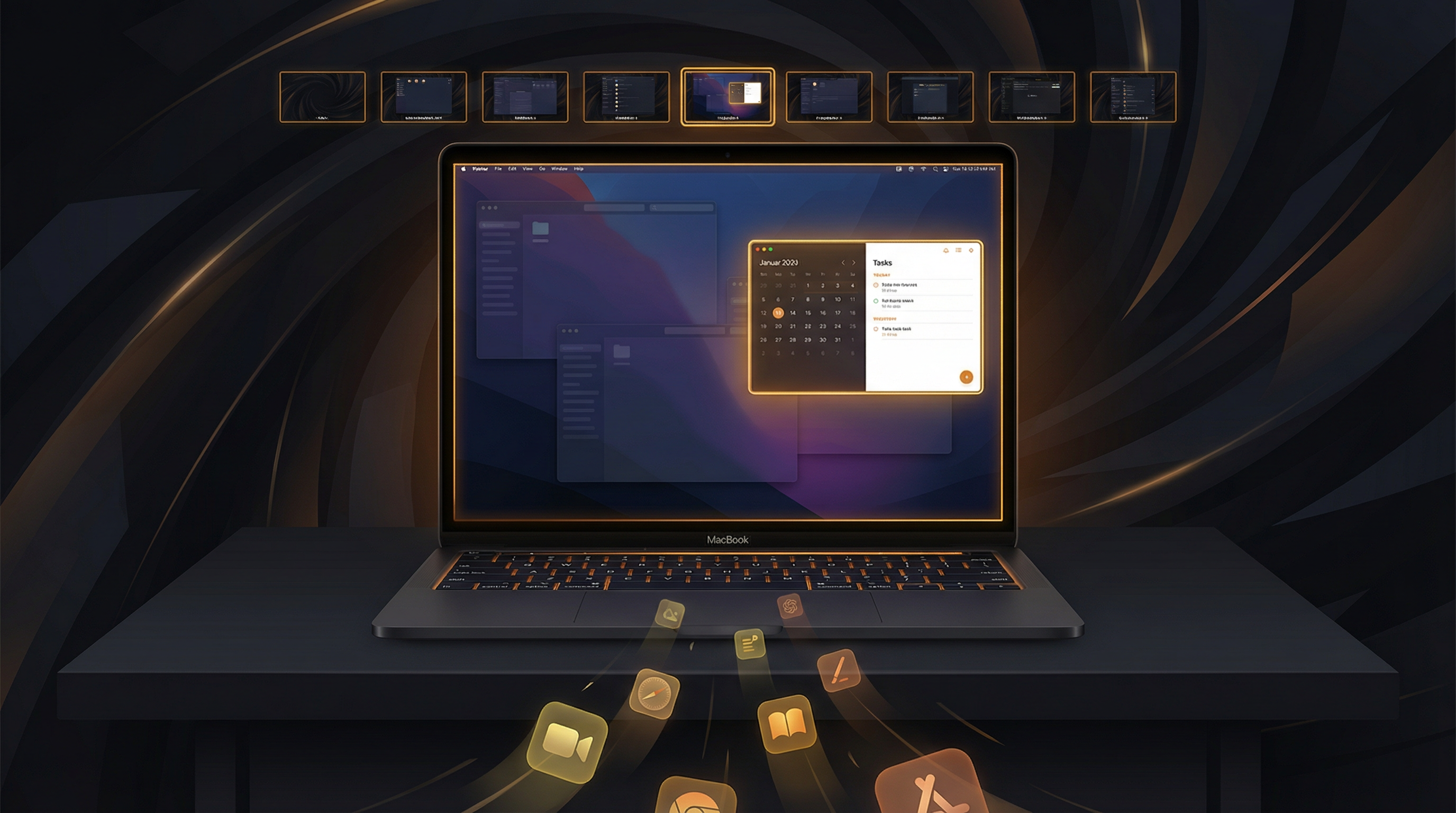
A cluttered desktop is a cluttered mind. Research from Princeton University's Neuroscience Institute found that physical clutter in your visual field competes for attention, reducing performance and increasing stress. The same applies to your digital workspace.
If you typically have 15+ windows open across a dozen apps, your brain spends significant energy just finding what you need. Here are five practical hacks to declutter your Mac workspace and boost focus.
Hack 1: Auto-Hide Inactive Apps
You know that app you opened three hours ago to check one thing? It's still there, occupying visual real estate and splitting your attention. macOS lets you manually hide apps with Cmd+H, but who remembers to do that consistently?
SuperDimmer's auto-hide does this automatically. Any app you haven't interacted with for a configurable period (default: 30 minutes) gets hidden — the equivalent of pressing Cmd+H. The app is still running, still in your Dock, and instantly accessible. It's just not cluttering your screen.
How to Configure
- Hide delay: Set from 5 to 120 minutes (default 30)
- Excluded apps: Keep communication apps (Slack, Messages) always visible
- System apps exclusion: Optionally exclude all system apps
Auto-hide isn't about closing apps — it's about visual hygiene. Your brain processes every visible window, even peripherally. Hiding unused apps reduces cognitive load without losing any work. Click the Dock icon and the app is immediately back, exactly as you left it.
Hack 2: Progressive Window Dimming
Imagine your workspace as a stage with a spotlight. The window you're actively using is brightly lit. The window you used 5 minutes ago is slightly dimmed. The one you haven't touched in an hour is noticeably faded. This is progressive dimming.
SuperDimmer tracks when you last interacted with each window and progressively dims them based on inactivity time. The visual hierarchy is immediate and intuitive:
- Active window: Full brightness — your current focus
- Recently used (1-5 min): Light dim — nearby context
- Stale (5-30 min): Moderate dim — secondary reference
- Inactive (30+ min): Heavy dim — "you probably forgot about this"
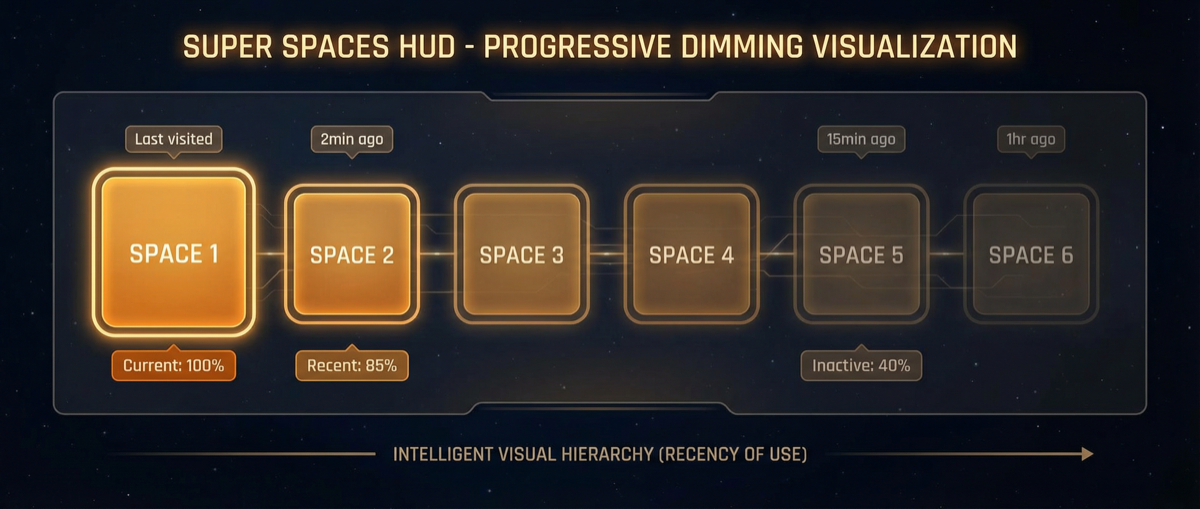
Progressive dimming creates a natural visual hierarchy — your active work stands out.
The effect is subtle but powerful. Without conscious effort, your eyes are guided to the most relevant content. Background noise fades away.
Hack 3: Smart Workspace Organization with Spaces
macOS Spaces let you create separate virtual desktops. Instead of layering everything on one screen, spread your work across contexts:
- Space 1: Communication (email, Slack, Messages)
- Space 2: Primary work (code, documents)
- Space 3: Research and reference
- Space 4: Admin and project management
With SuperDimmer's Super Spaces HUD, switching between these is instant via Cmd+1 through Cmd+9. Add per-Space notes to remember what's on each desktop, and you have a self-documenting workspace system.
Hack 4: Idle-Aware Timers
Here's a scenario: you set auto-hide to 30 minutes, then step away for lunch. When you come back, everything has been hidden. Annoying.
SuperDimmer solves this with idle-aware timers. All decay features — auto-hide, auto-minimize, and progressive dimming — automatically pause when you're idle (no mouse or keyboard input). Your workspace stays frozen exactly as you left it.
When you return and move the mouse, timers resume from where they were. This means:
- Leave for 5 minutes? Timers pause for 5 minutes.
- Leave for 2 hours? Timers pause for 2 hours.
- Your workspace is always consistent with your active usage, not wall clock time.
Hack 5: Auto-Minimize Excessive Windows
Some apps (looking at you, Finder) accumulate windows like weeds. Open a folder here, a file there — suddenly you have 12 Finder windows. SuperDimmer's auto-minimize feature addresses this by:
- Tracking window usage time per app
- Minimizing the oldest unused windows when an app exceeds a threshold
- Keeping at least N windows open per app (configurable — default varies by app type)
Like auto-hide, it only counts active usage time. If you're idle, timers pause. And minimized windows are easily restored from the Dock.
Putting It Together: The Focused Mac Setup
Here's how all five hacks work together in practice:
- Spaces organize your windows by context (communication, work, research)
- Super Spaces HUD lets you switch instantly with keyboard shortcuts
- Progressive dimming creates visual hierarchy within each Space
- Auto-hide removes apps you haven't used in 30+ minutes
- Idle-aware timers ensure nothing changes while you're away
The result: at any given moment, your screen shows only what's relevant. Your active window is bright and prominent. Recent context is lightly dimmed but visible. Everything else is either dimmed, hidden, or on another Space. Your attention isn't fighting visual clutter — it's flowing naturally to where it needs to be.
The best productivity tool isn't the one that adds features — it's the one that removes distractions.
Declutter Your Mac
Auto-hide, progressive dimming, Super Spaces HUD, and more — all free during early access. Transform your workspace in 30 seconds.
Download Free for macOS