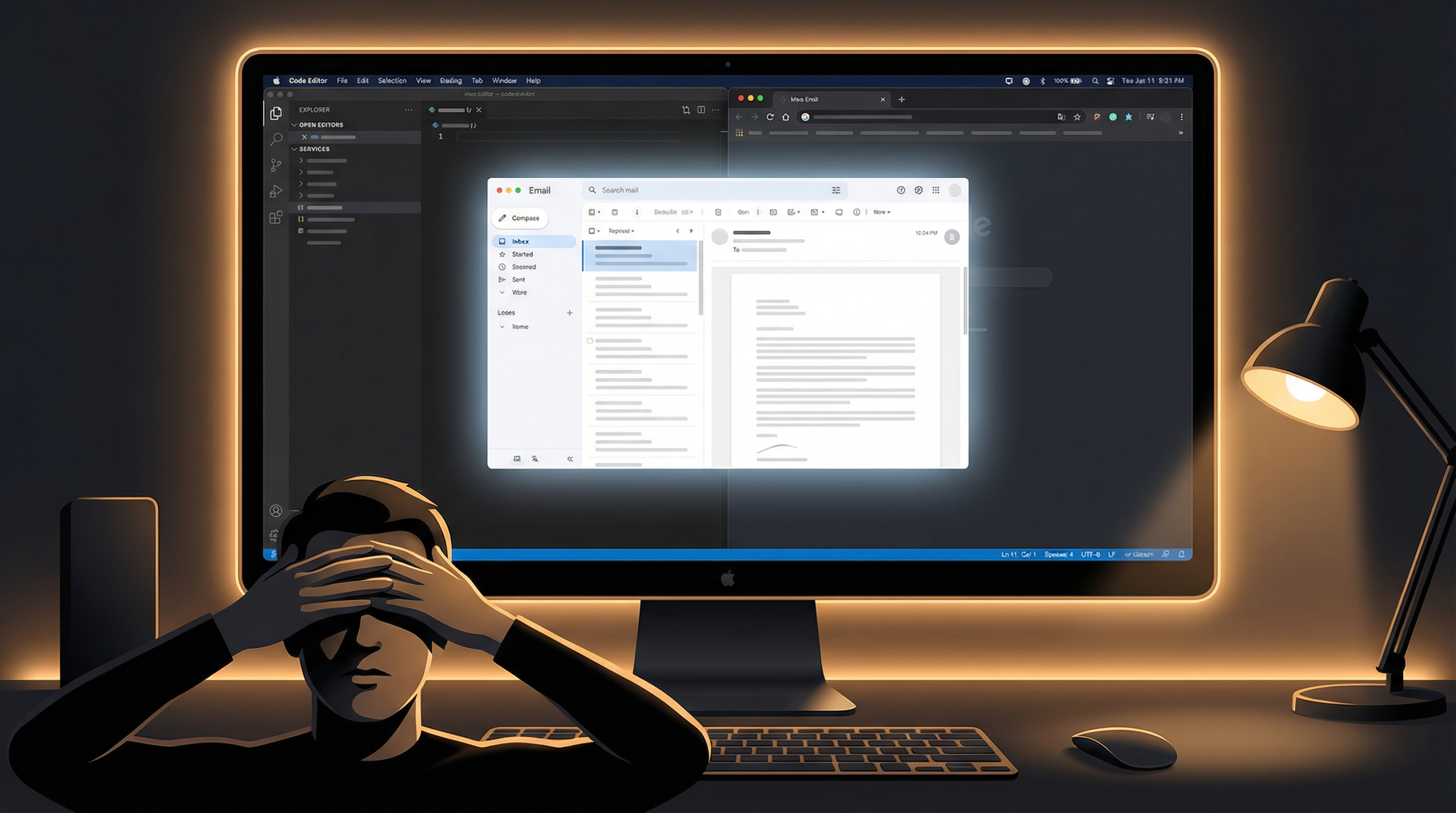
When Apple introduced system-wide Dark Mode in macOS Mojave (2018), it felt like the answer to eye strain. Finally, all those bright white windows could become dark, comfortable interfaces. Millions of users switched — and for good reason.
But here's the reality seven years later: dark mode only solves part of the problem. If you still experience eye fatigue, headaches, or discomfort after switching to dark mode, you're not alone. Here's why, and what you can do about it.
The Dark Mode Blind Spots
Dark mode changes the UI chrome — menus, sidebars, toolbars, and backgrounds of apps that support it. That's genuinely helpful. But there's a massive category of content that dark mode simply cannot touch:
1. Email Content
You've set Mail to dark mode. The sidebar is dark. The toolbar is dark. But when you open an email from a newsletter, a receipt, or a colleague — the email body is white. HTML emails are rendered with their own styles, and most are designed for white backgrounds. Your beautiful dark Mail app now has a blazing white rectangle in the center of the screen.
2. Web Pages
Safari and Chrome can match dark mode for their own UI (tabs, address bar). But the web content itself? That's up to each website. And according to web analytics, the vast majority of websites still use white or light backgrounds. Even with the prefers-color-scheme CSS media query available, adoption remains limited.
3. Documents and Productivity Apps
Google Docs, Microsoft Word, PDFs, Notion, Figma, Miro, Airtable — these either don't support dark mode or render their primary content on white canvas. When your main workspace is a document, dark mode gives you a dark titlebar above a white page.
4. Third-Party Apps
Many macOS apps — especially older ones, Java-based tools, or Electron apps — either partially support dark mode or ignore it entirely. Your carefully curated dark environment gets interrupted by bright windows you can't control.
Dark mode changes the frame around your content. But the content itself — which occupies most of your screen — often remains bright. Your eyes are still processing high-luminance regions for most of your workday.
What Intelligent Screen Dimming Does Differently
Instead of relying on apps to support a color scheme, intelligent screen dimming takes a fundamentally different approach: it analyzes what's actually on your screen and dims the bright parts.
SuperDimmer scans your display as a grid, measuring the brightness of each region. Regions above your configured threshold get a transparent dimming overlay. Dark regions stay untouched.
This means:
- That bright email body? Dimmed to a comfortable level.
- White Google Docs page? Automatically dimmed.
- Light-themed Electron app? Dimmed without waiting for the developer to add dark mode.
- Your dark terminal and code editor? Completely untouched — crisp and unchanged.
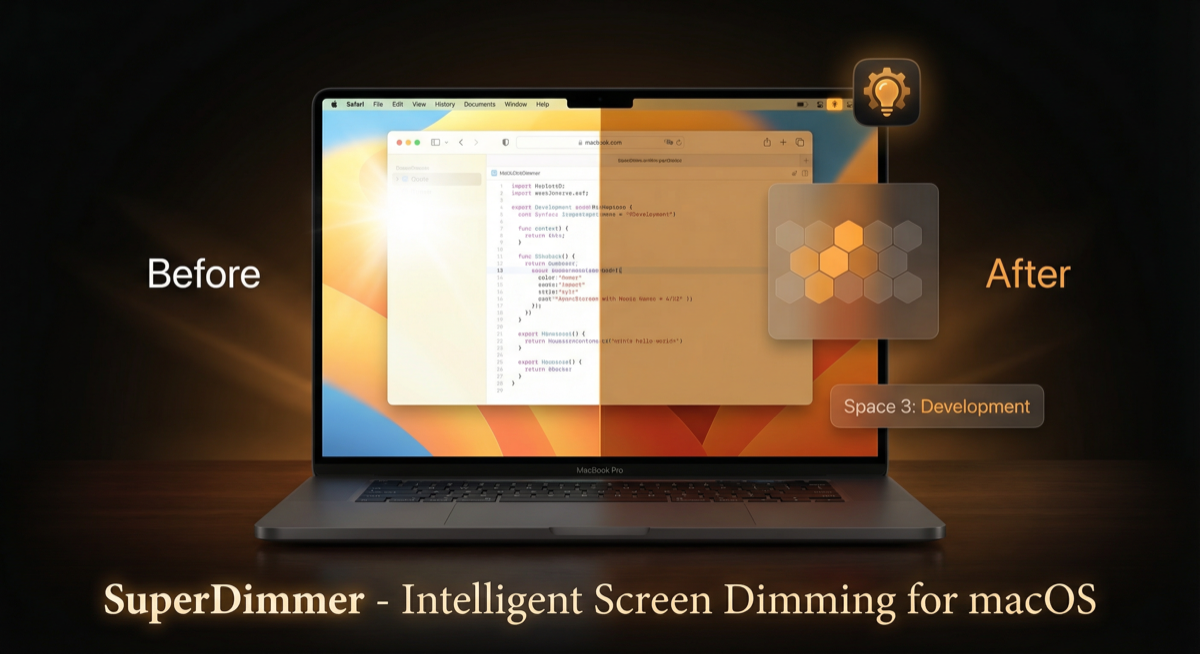
SuperDimmer dims only the bright regions. Dark-themed apps and sidebars remain untouched.
Per-Window Dimming: Focus Where It Matters
Beyond region-level dimming, SuperDimmer offers per-window dimming with active/inactive differentiation. This means:
- Your active window gets light dimming (e.g., 15%) — enough to reduce brightness without impacting readability
- Your inactive windows get heavier dimming (e.g., 35%) — they fade into the background, reducing overall screen brightness and visual noise
This creates a natural visual hierarchy that both reduces eye strain and helps you focus. The window you're working in stands out, while everything else recedes.
Progressive Dimming: Automatic Visual Priority
SuperDimmer goes even further with progressive dimming — windows you haven't used recently progressively dim based on inactivity time. The longer a window sits unused, the more it fades. When you click on it, it instantly brightens back up.
This is like having a spotlight that follows your attention. Your current work is always well-lit, while old windows gradually dim to reduce the total light output of your display.
Dark Mode + Intelligent Dimming = Best of Both Worlds
The optimal setup isn't dark mode or intelligent dimming — it's both:
- Dark mode handles what it can — system UI, supported apps, native interfaces
- Intelligent dimming handles everything else — web content, emails, documents, third-party apps
- Color temperature control adds the blue-light-reduction layer for evening work
Together, these create a genuinely comfortable screen experience that no single tool achieves alone. Your entire visual field maintains a consistent, low-brightness environment without sacrificing readability or color accuracy in your active work.
Getting Started
SuperDimmer takes about 30 seconds to set up:
- Download from superdimmer.com
- Grant Screen Recording permission (needed to analyze brightness)
- Set your brightness threshold and preferred dim levels
- Enable the features you want — dimming, color temperature, auto-hide, etc.
It runs as a lightweight menu bar app with under 5% CPU usage when active and near-zero when idle. All features are free during the early access period.
Go Beyond Dark Mode
SuperDimmer adds the intelligent layer that dark mode is missing. Free during early access — no account required.
Download Free for macOS