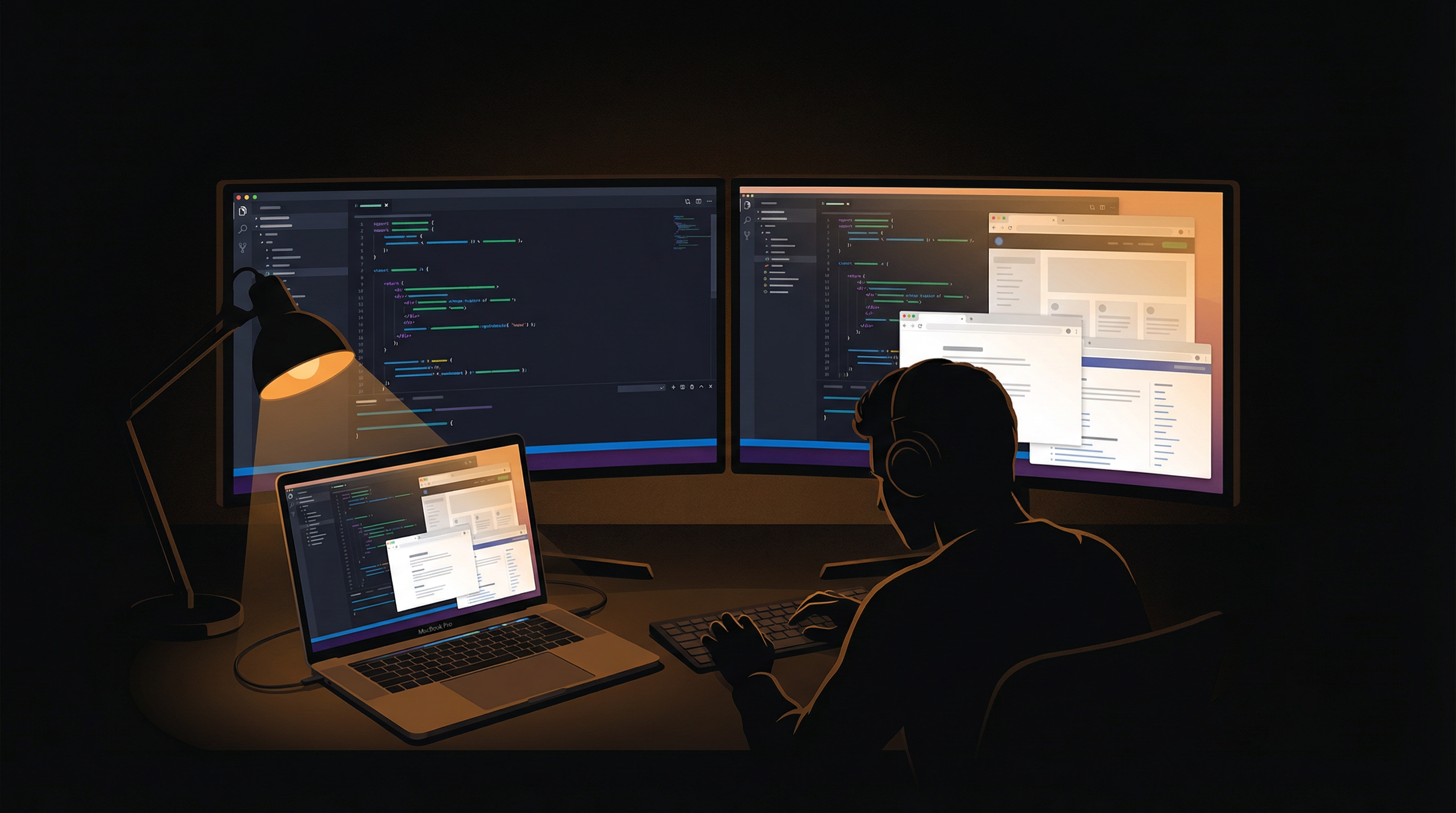
You've spent an hour perfecting your VS Code theme. The background is a deep charcoal, syntax highlighting uses carefully chosen muted tones, and the terminal is a satisfying dark slate. Then you hit a problem, open your browser, and get blasted by a pure-white Stack Overflow page at full brightness. Sound familiar?
According to the 2024 Stack Overflow Developer Survey, over 70% of developers use a dark theme in their IDE. Yet the rest of the developer workflow — documentation, issue trackers, code reviews, browser-based tools — is overwhelmingly rendered on white backgrounds. This creates what we call the programmer's brightness paradox, and it's silently wrecking your eyes.
The Programmer's Brightness Paradox
As a developer, your daily workflow involves constant context switching between dark and bright environments. Consider a typical coding session:
- VS Code or JetBrains IDE: Dark theme, 20-30 cd/m² luminance
- Stack Overflow or MDN docs: White background, 300+ cd/m² luminance
- Jira, Linear, or GitHub Issues: Mostly white UI, 250+ cd/m²
- Slack or Teams thread: Message bodies on white, 200+ cd/m²
- API documentation: Bright white pages, often no dark mode option
Every time you switch from your dark editor to a bright browser tab, your pupils constrict rapidly. When you switch back, they dilate. This constant iris muscle adjustment is a primary driver of digital eye strain, according to the American Academy of Ophthalmology. Over an 8-12 hour coding session, it accumulates into headaches, blurred vision, and fatigue that you might attribute to "just being tired."
Multi-Monitor Setups Make It Worse
The Stack Overflow survey also shows that a significant portion of developers use dual or triple monitor setups. More screens means more simultaneous brightness sources in your peripheral vision.
Picture the typical dev layout: your editor occupies one screen, a browser with documentation sits on the second, and Slack plus a terminal fill the third. At any moment, two of those three screens are blasting bright content while you focus on one. Your peripheral vision doesn't ignore those — it processes the brightness, contributing to overall eye fatigue even when you're not looking directly at the bright screen.
"I realized my eye strain was worst not when I was reading code, but when I was reading code next to two bright monitors I wasn't even looking at."
Research from the Journal of Ophthalmology confirms that peripheral brightness differences significantly increase visual fatigue. The greater the luminance ratio between your focus area and surroundings, the harder your visual system works.
Why Traditional Solutions Fail for Developers
Developers are problem-solvers by nature, so you've probably already tried the obvious fixes. Here's why they fall short:
Night Shift / f.lux
Color temperature tools like macOS Night Shift and f.lux reduce blue light emission, which helps with sleep disruption. But they don't reduce brightness at all. A white page at 2700K is still blindingly bright in a dark room — it's just orange-tinted instead of blue-tinted. Worse, aggressive color shifting can alter how you perceive syntax highlighting, making it harder to distinguish between similar colors in your code.
Browser Dark Mode Extensions
Extensions like Dark Reader invert web pages to dark backgrounds. They work reasonably well for text-heavy sites, but they break constantly. CSS-heavy documentation sites render incorrectly, syntax-highlighted code blocks become unreadable, images get inverted, and interactive web apps (Figma, Google Docs, Retool) become unusable. You end up toggling the extension on and off dozens of times per day.
Full-Screen Dimming (MonitorControl, etc.)
Apps like MonitorControl dim your entire display uniformly. This helps with the bright pages, but it also dims your already-dark IDE, making code harder to read. You constantly adjust the slider based on which window is in focus — which is exactly the kind of manual overhead developers hate.
Every traditional solution treats your screen as a single brightness zone. But a programmer's screen isn't uniform — it's a patchwork of dark and bright regions that change constantly as you switch between editor, browser, terminal, and tools.
Per-Region Dimming: Built for the Dev Workflow
SuperDimmer solves this by analyzing your screen in real-time and applying dimming only to regions that exceed your brightness threshold. Your dark IDE stays untouched. The bright Stack Overflow tab gets dimmed. Automatically, without you doing anything.
Here's what this looks like in practice for a typical developer setup:
- Your VS Code window with a dark theme: no dimming applied (it's already below threshold)
- The browser tab with white documentation: dimmed by 30-50%, making it comfortable while keeping text perfectly readable
- Slack sidebar (dark): no dimming. Slack message area (bright): dimmed appropriately
- Terminal windows: typically dark, so left alone entirely
The dimming adjusts within windows, not just between them. If you have a dark sidebar next to a bright editor pane in a single window, each region is handled independently.
Active vs. Inactive: Focus Where It Matters
SuperDimmer also supports different dim levels for your focused window versus background windows. Set your active window to a light 15% dim and background windows to 40%. When you're deep in code, everything else fades — visually reinforcing your focus and dramatically reducing total screen luminance.
This pairs naturally with how developers already work. You're focused on one thing — a function you're writing, a PR you're reviewing, a bug you're tracing. Everything else is context you might glance at but don't need at full brightness.
Progressive Dimming for Many Windows
Developers are notorious for window accumulation. By the end of a session, you might have 20+ windows open across your IDE, multiple browser profiles, terminals, database GUIs, and API clients. SuperDimmer's progressive dimming feature automatically dims windows based on how recently you used them.
The window you used 2 minutes ago gets a slight dim. The one from 30 minutes ago gets a deeper dim. That browser tab you haven't touched in 2 hours? It fades significantly. The result is a natural visual hierarchy that helps you instantly identify which windows are current and which are stale — without manual organization.
Super Spaces for Dev Environments
If you use macOS Spaces to organize your work (and if you don't, you should), SuperDimmer's Super Spaces HUD lets you set up dedicated workspaces with per-Space dimming profiles. Your coding Space might have moderate dimming (you're switching between dark and bright windows frequently), while your research Space with multiple bright doc tabs gets aggressive dimming.
Switch between Spaces with Cmd+1 through Cmd+9, and your dimming settings follow. No reconfiguration needed.
Performance: Under 5% CPU
This is the question every developer asks: "How much overhead does it add?" Screen analysis and overlay rendering in SuperDimmer is engineered to stay under 5% CPU usage on Apple Silicon Macs. The analysis loop runs at a configurable interval (default 2 seconds), and overlays are rendered using lightweight NSWindow layers that bypass the GPU compositing overhead of heavier approaches.
For context, that's less CPU than a typical Electron app uses when idle. You won't notice it in your Activity Monitor, and it won't affect build times, IDE responsiveness, or Docker container performance.
Install SuperDimmer, set brightness threshold to 60%, active window dim to 15%, inactive window dim to 35%, and enable progressive dimming. That's it — your entire multi-monitor dev setup is now eye-strain optimized without touching a single browser extension or theme setting.
The Compound Effect of Long Sessions
The World Health Organization notes that extended screen exposure is a growing occupational health concern. For developers specifically, the combination of long hours, high cognitive load, and constant context-switching between bright and dark interfaces creates a uniquely fatiguing visual environment.
The tools you use for coding already optimize for developer ergonomics — syntax highlighting, code folding, intelligent autocomplete. Screen dimming is the visual ergonomics layer that's been missing. It doesn't change how you code. It changes how your eyes feel at 6pm after coding since 9am.
Your eyes are your most important dev tool. Protect them the same way you protect your codebase — with the right tooling.
Try SuperDimmer Free
Per-region dimming, progressive window fading, and Super Spaces — built for developers who stare at screens all day. Free during early access.
Download Free for macOS