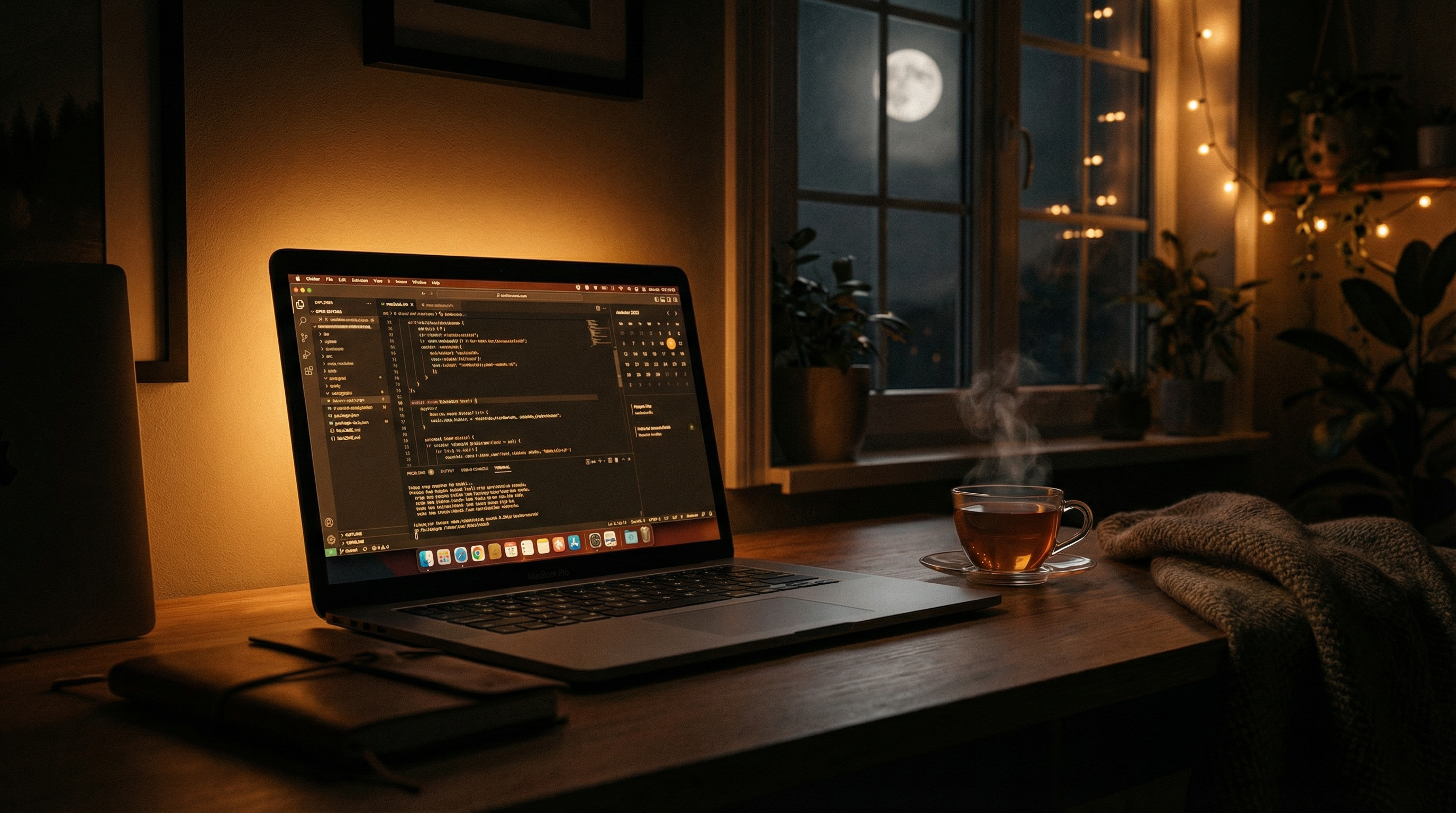
Whether you're a developer pushing a late-night commit, a writer chasing a deadline, or simply catching up on emails after the kids are asleep — working on your Mac at night is a different experience than during the day. The screen that felt perfectly comfortable at 2pm becomes a blinding rectangle at 11pm.
Research from Harvard Medical School confirms that evening screen exposure suppresses melatonin production by up to 50%, delays sleep onset, and reduces sleep quality. But you can dramatically mitigate these effects with the right setup. Here's how to build a nighttime Mac workflow that protects your eyes and your sleep.
1. Schedule Color Temperature Shifts
The single most impactful change you can make is shifting your display's color temperature from cool blue-white to warm amber as the sun goes down. This reduces the short-wavelength blue light (415–455nm) that suppresses melatonin.
Recommended Settings
- Daytime (sunrise to 4pm): 6500K — standard daylight. Full color accuracy for design and photo work.
- Late afternoon (4pm to sunset): 5000K — subtle warming that most users won't consciously notice but reduces blue light by ~20%.
- Evening (sunset to 10pm): 3500K–4100K — noticeable warmth. Text remains easily readable. Good for general use.
- Late night (10pm onward): 2700K–1900K — significant amber tint. Ideal for reading, browsing, and low-focus work.
In SuperDimmer, open the color temperature panel from the menu bar, set your preferred Kelvin for each period, and enable location-based scheduling. The transition happens gradually over 20 minutes — you won't even notice the shift.
Apple's Night Shift provides a basic warm/cool slider but offers no Kelvin readout, no multi-step scheduling, and it's disabled by HDR content. Dedicated tools like SuperDimmer and f.lux give you precise, reliable control.
2. Set Optimal Brightness for Dark Rooms
Color temperature gets the most attention, but brightness matters just as much at night. A warm-tinted display at full brightness is still a spotlight in a dark room.
The research-backed guideline from the American Academy of Ophthalmology is simple: your screen brightness should approximately match the brightness of your surroundings. In a dark room, that means significantly lower than default.
Practical Targets
- Well-lit room: 60–80% brightness
- Dimly-lit room (desk lamp only): 30–50% brightness
- Near-darkness: 10–25% brightness
For MacBook users, the built-in auto-brightness adjusts based on ambient light but often stays too high. Manually lower it beyond what macOS suggests. For external monitors, use a tool like MonitorControl to control hardware brightness with your keyboard.
3. Set Up Bias Lighting
Working in complete darkness is one of the worst things you can do for your eyes. The extreme contrast between a bright screen and a pitch-black room forces your pupils to constantly oscillate, leading to rapid fatigue.
The solution is bias lighting: a dim, warm light positioned behind your monitor. This reduces the contrast ratio between screen and surroundings without adding glare.
Recommended Setup
- LED strip light (warm white, 2700K–3000K) attached to the back of your monitor or behind your desk
- Set brightness to roughly 10–20% of your screen's brightness — just enough to softly illuminate the wall behind
- Avoid cool/blue bias lights at night — they defeat the purpose of warming your display
- Smart bulbs (Philips Hue, LIFX) can schedule temperature shifts to match your screen
"A $15 USB LED strip behind your monitor can reduce eye fatigue more dramatically than any software adjustment alone. The combination of both is ideal."
4. Configure Dark Mode Properly
macOS Dark Mode should be the foundation of any nighttime workflow. Enable it in System Settings > Appearance and set it to Auto to switch at sunset.
But don't stop there — configure your individual apps too:
- Browser: Install a dark mode extension like Dark Reader for Safari, Chrome, or Firefox. This forces dark backgrounds on websites that don't offer native dark mode.
- Code editor: Use a dark theme with moderate contrast. Extremely dark themes (pure black backgrounds) can cause "halation" where bright text bleeds into the dark background. Look for themes with dark gray (#1e1e1e) rather than pure black (#000000).
- Email: Apple Mail and Outlook support dark mode, but embedded HTML emails often override it with white backgrounds.
- Documents: Preview and some PDF readers support a dark background mode. In Pages, use dark mode appearance.
5. Use Intelligent Dimming for What Dark Mode Misses
Here's the gap that most nighttime workflows overlook: even with Dark Mode and Dark Reader active, bright content constantly breaks through. HTML email bodies. Google Docs. Figma canvas areas. PDF documents. Image previews. Browser-based tools with white backgrounds.
This is where SuperDimmer's intelligent per-region dimming becomes essential at night. It continuously scans your screen and automatically dims any region that exceeds your configured brightness threshold. The white email body inside dark-mode Mail gets dimmed. The Google Doc gets dimmed. Your dark-themed sidebar stays crisp.
Night-Optimized SuperDimmer Settings
- Brightness threshold: Lower to 40–50% (more regions will trigger dimming)
- Active window dim: 20–30% (readable but comfortable)
- Inactive window dim: 40–55% (significantly faded for reduced visual noise)
- Grid resolution: 8×8 or higher for precise boundaries
Save these settings as a nighttime configuration that you can toggle from SuperDimmer's menu bar — or let location-based scheduling apply them automatically at sunset.
6. Practice the 20-20-20 Rule with Break Reminders
Extended nighttime sessions are when you're most likely to lose track of time. The 20-20-20 rule — every 20 minutes, look at something 20 feet away for 20 seconds — is even more important after dark.
Use Time Out or a similar break reminder. Configure it for gentle 10-second micro-breaks every 20 minutes and a longer 5-minute break every hour. During micro-breaks, close your eyes or focus on a distant point to relax your ciliary muscles.
7. Auto-Hide to Reduce Visual Noise
At night, when your cognitive resources are depleted, visual clutter is especially taxing. Every unnecessary bright window in the background contributes to overstimulation.
SuperDimmer's auto-hide feature automatically hides applications you haven't interacted with for a configurable period (default 30 minutes). For nighttime work, consider lowering this to 15–20 minutes. Combined with progressive dimming — where idle windows gradually fade — your workspace naturally simplifies to just what you're actively using.
Also enable macOS auto-hide for the Dock (System Settings > Desktop & Dock) and consider auto-hiding the menu bar to eliminate the bright strip at the top of your screen.
8. Ambient Sound for Focus and Wind-Down
Your nighttime workflow isn't just visual. Ambient sound can signal to your brain that it's wind-down time and help maintain focus without the stimulation of high-energy music.
- Brown noise or rain sounds: Noisli or the built-in macOS Background Sounds (System Settings > Accessibility > Audio > Background Sounds) provide steady ambient textures
- Lo-fi instrumental: Keeps you focused without lyrics competing for attention
- Volume: Keep it low — just above the threshold of awareness
Putting It All Together: The Complete Night Setup
Here's the checklist for a fully optimized nighttime Mac workflow:
- Color temperature: Scheduled from 6500K (day) → 4100K (evening) → 2700K (night) → 1900K (late night)
- Display brightness: Matched to room brightness — 30–50% in dim rooms, 10–25% near darkness
- Bias lighting: Warm LED strip (2700K) behind monitor at 10–20% screen brightness
- Dark mode: System-wide + Dark Reader for browsers + app-specific themes
- Intelligent dimming: SuperDimmer catching bright content that dark mode misses
- Break reminders: Time Out with 20/20/20 micro-breaks
- Auto-hide: SuperDimmer auto-hiding idle apps; Dock and menu bar auto-hidden
- Ambient sound: Low-volume brown noise or rain sounds
Each layer compounds on the others. Color temperature handles blue light. Brightness matching handles luminance. Bias lighting handles contrast. Intelligent dimming handles the bright content that slips through Dark Mode. Breaks handle muscle fatigue. The result is a workflow where midnight coding feels as comfortable as afternoon coding — and your sleep doesn't suffer for it.
Try SuperDimmer Free
Intelligent screen dimming, color temperature control, auto-hide, and more. All features free during early access.
Download Free for macOS