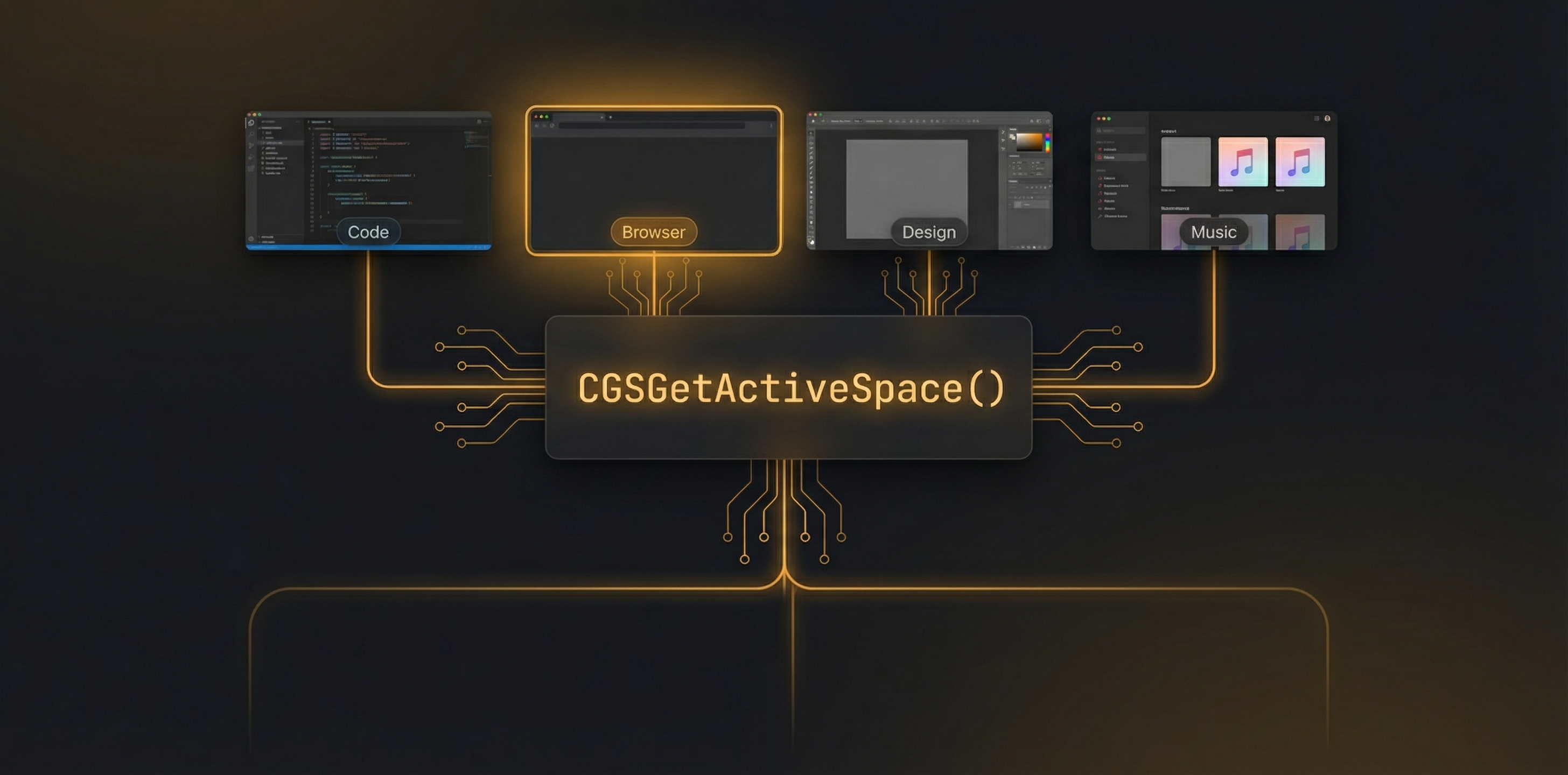
One of the most technically challenging problems we solved while building SuperDimmer was tracking which macOS Space (virtual desktop) the user is currently on. Apple provides no public API for this. The NSWorkspace.activeSpaceDidChangeNotification tells you a Space changed, but not which Space you're on. This is the story of how we cracked it.
The Problem: macOS Spaces Are a Black Box
macOS Spaces (virtual desktops) are a core part of the operating system. Millions of users rely on them daily to organize their work. Yet Apple treats Space identity as an implementation detail — there's no public framework, no documented API, and no officially supported way for third-party apps to know which Space is active.
This creates a real problem for apps like SuperDimmer. Our Super Spaces HUD needs to show the user which Space they're on, enable keyboard shortcuts to jump to specific Spaces, and apply progressive dimming based on Space visit history. All of that requires knowing the current Space in real-time.
What Apple Gives You (Not Much)
- NSWorkspace.activeSpaceDidChangeNotification: Fires when the active Space changes. Tells you nothing about which Space you moved to.
- CGWindowListCopyWindowInfo: Returns window info including Space IDs per window, but not the current active Space.
- com.apple.spaces.plist: A preferences file that contains Space metadata, but it's updated asynchronously with a 100-200ms lag after Space changes.
None of these individually solve the problem. We needed something faster, more reliable, and capable of answering "which Space is the user on right now?" in under 5 milliseconds.
The Solution: CGS Private APIs
Deep inside macOS, the Core Graphics Services (CGS) framework manages the window server — the system component that handles all window drawing, compositing, and Space management. CGS exposes private C functions that apps like Hammerspoon, BetterTouchTool, and other power-user tools have used for years.
The two critical functions we use:
extern CGSMainConnectionID() -> Int
// Get the active Space ID for this connection
extern CGSGetActiveSpace(cid: Int) -> Int
CGSMainConnectionID() returns a connection identifier to the macOS window server. Think of it as a "session handle" for talking to the graphics subsystem. CGSGetActiveSpace() then uses that connection to return the ManagedSpaceID — a unique integer identifying the current Space.
These calls are extremely fast — under 1 millisecond — because they're direct queries to the window server with no disk I/O or file parsing involved.
Bridging CGS into Swift
Since these are private C functions with no Swift headers, we use @_silgen_name to bridge them directly:
typedef int CGSConnection;
extern CGSConnection CGSMainConnectionID(void);
extern int CGSGetActiveSpace(CGSConnection cid);
// In Swift, we can call these directly:
let cid = CGSMainConnectionID()
let activeSpaceID = CGSGetActiveSpace(cid)
We considered using dlsym() for dynamic resolution (which would avoid linking against private symbols), but direct C bridging proved more reliable and maintainable. The trade-off is that we depend on these symbols existing in the CGS framework, which they have consistently across macOS 13, 14, and 15.
The Hybrid Architecture: CGS + Plist
The raw ManagedSpaceID from CGS is just an integer — something like 42 or 187. It doesn't tell you "this is Space 3" or give you any human-readable metadata. For that, we need the plist.
Reading the Spaces Plist
macOS stores Space configuration in ~/Library/Preferences/com.apple.spaces.plist. This file contains:
- Space UUIDs: Stable identifiers like
5A4B3C2D-1E0F-...that persist across reboots - Space names: User-assigned names (if any) or default "Desktop N" labels
- Space order: The array order matches what Mission Control shows
- Display assignment: Which display each Space belongs to
The critical insight: the position of a Space in the plist array is its visual number in Mission Control. If a Space's UUID is at index 2 in the array, it's "Desktop 3" (zero-indexed). This is how we map the raw ManagedSpaceID to a human-readable Space number.
The Detection Pipeline
Our SpaceDetector class runs this pipeline:
- CGS query (~1ms): Call
CGSGetActiveSpace()to get the currentManagedSpaceID - Plist read (~2-4ms): Parse the Spaces plist to get the full Space list with UUIDs and order
- Mapping: Match the
ManagedSpaceIDto the plist entry, derive the Space number and UUID - Output: Return a
SpaceInfostruct with ID, UUID, number, name, and display
Total time: 3-5 milliseconds. Fast enough to call on every Space change notification without any perceptible delay.
CGS gives us speed — sub-millisecond identification of the active Space. The plist gives us metadata — the Space number, UUID, and human-readable name. Neither is sufficient alone. CGS without plist gives you a meaningless integer. Plist without CGS has a 100-200ms lag and can't tell you the current Space directly.
Challenges We Overcame
The Plist Lag Problem
When a Space change occurs, NSWorkspace.activeSpaceDidChangeNotification fires immediately. But the Spaces plist isn't updated for another 100-200 milliseconds. If we read the plist immediately on notification, we might get stale data from the previous Space layout.
Our solution: use CGS as the source of truth for the current Space ID (which updates instantly), and only use the plist for mapping that ID to metadata. We cache the plist data and refresh it periodically rather than on every Space change.
Multi-Monitor Complexity
Each display in macOS has its own independent set of Spaces. A user with two monitors might have 4 Spaces on the primary display and 3 on the secondary. CGS returns the active Space for the currently focused display, which is correct for our use case. But the plist organizes Spaces by display, so our mapping logic has to filter by display first.
App Store Compatibility
Private APIs are technically prohibited in App Store apps. However, many well-known utilities (Hammerspoon, BetterTouchTool, Contexts, etc.) use these same CGS functions and are distributed outside the App Store. Since SuperDimmer is distributed directly via our website (not the App Store), this isn't a constraint. We do maintain a fallback path that uses plist-only detection for scenarios where CGS might not be available.
Results
This hybrid CGS + plist approach powers everything in Super Spaces HUD:
- Instant Space identification in under 5ms on every Space change
- Keyboard shortcut switching — press Cmd+3 and we know exactly which Space to navigate to
- Progressive dimming — we track Space visit history by UUID, so dimming persists correctly even when Spaces are reordered
- Visual overview — the HUD shows the correct Space number and active indicator with zero lag
It took weeks of research, testing, and iteration to get this right. The macOS Spaces subsystem is one of the least documented parts of the OS, and every other app that does Space tracking has had to solve similar problems. We're proud of the result — it's fast, reliable, and has been stable across multiple macOS versions.
Experience Super Spaces HUD
Real-time Space tracking, keyboard shortcuts, progressive dimming, and visual overview — all powered by the technology described here. Free during early access.
Download Free for macOS