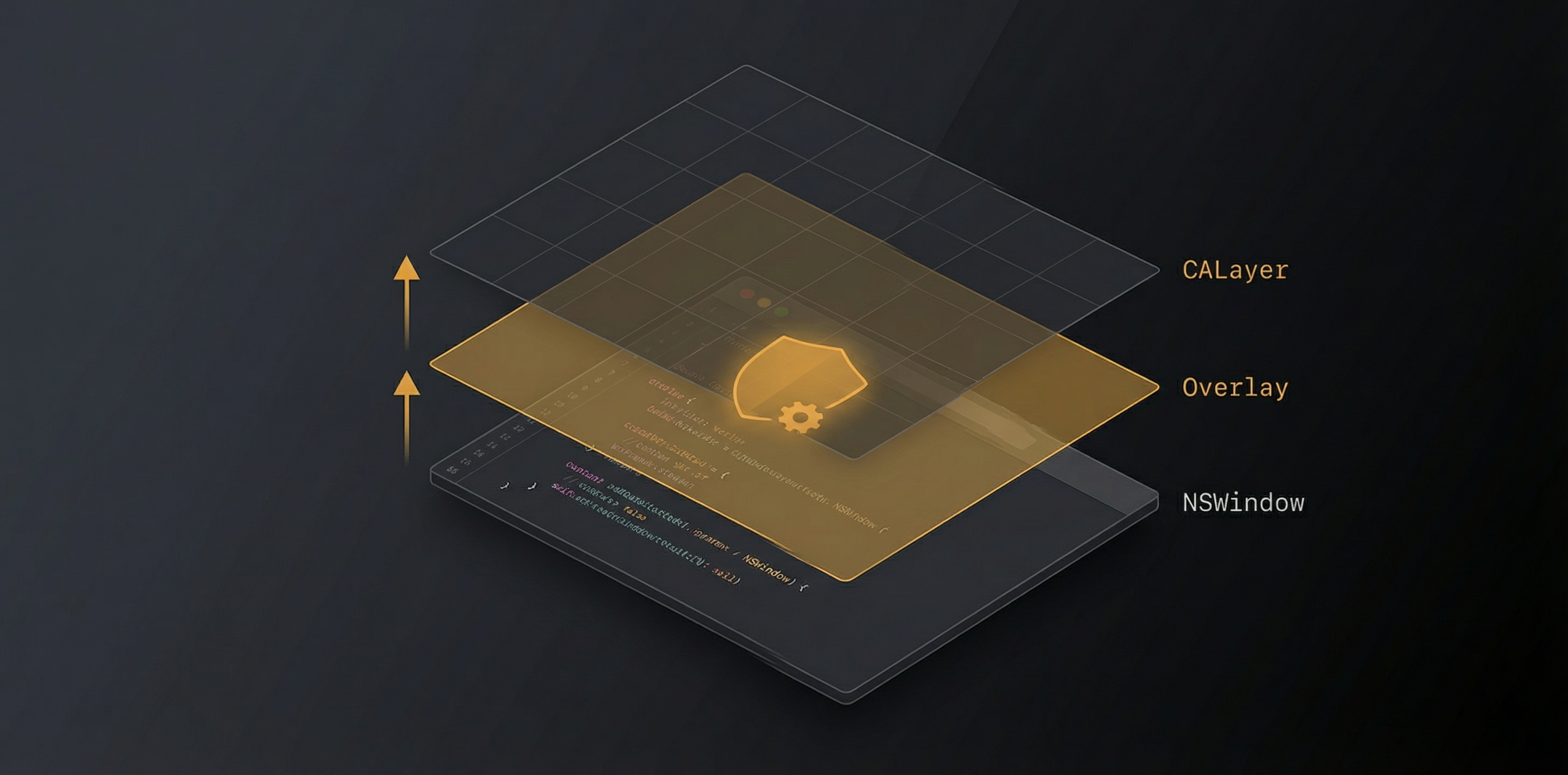
Screen dimming software needs to place transparent windows on top of other windows without intercepting mouse clicks, without appearing in screenshots, without blocking Mission Control, and without crashing when windows close, spaces change, or Core Animation layers get deallocated at the wrong time. It's harder than it sounds. This is how we built SuperDimmer's overlay system — and the crashes we had to survive to get there.
The Overlay Window Challenge
A dimming overlay is conceptually simple: a transparent window with a semi-opaque dark fill, positioned exactly over the target window. In practice, it's a minefield of edge cases:
- Click-through: The overlay must not intercept mouse clicks — users need to interact with the window beneath
- Z-ordering: The overlay must stay above its target window but below other windows
- Space behavior: Overlays must appear on the correct macOS Space and handle Space transitions
- Performance: Potentially dozens of overlays updating every frame during window movement
- Lifecycle: Overlays must be cleaned up when target windows close, without crashing
DimOverlayWindow: Our Custom NSWindow
Each dimming overlay is a custom DimOverlayWindow subclass of NSWindow with very specific properties:
styleMask: .borderless
backgroundColor: .clear
isOpaque: false
ignoresMouseEvents: true // Click-through!
hasShadow: false
collectionBehavior: [
.canJoinAllSpaces, // Appears on every Space
.fullScreenAuxiliary, // Works with fullscreen
.stationary, // Doesn't move with Spaces
.ignoresCycle // Skip in Cmd+Tab
]
The ignoresMouseEvents = true property is the most critical — it makes the window completely transparent to user interaction. Clicks, drags, scrolls, and hovers all pass through to whatever is underneath. The user never knows the overlay exists.
Hybrid Z-Ordering: The Trickiest Problem
Getting overlays to sit at the right Z-level was one of the hardest problems we solved. The naive approach of "just put overlays on top" doesn't work because:
- If all overlays are at
.floatinglevel, they cover everything — including windows that should be undimmed - If overlays are at
.normallevel, they might end up behind their target windows - When the user switches focus, the Z-order of overlays needs to change instantly
Our Hybrid Approach
We use different window levels depending on the target window's state:
- Frontmost window overlays: Set to
.floatinglevel withorderFront(nil). This ensures they stay visible on top of the active window. - Background window overlays: Set to
.normallevel withorderAboveWindow(windowID). This places each overlay directly above its specific target window, so it dims that window but not others.
When focus changes, we quickly reclassify: the previously-front overlay drops to .normal, and the newly-front overlay jumps to .floating. This transition happens within a single run loop cycle, so there's no visible flicker.
The Core Animation Crash
The most insidious bug we encountered was a crash in deinit when overlay windows were deallocated. The crash manifested as EXC_BAD_ACCESS deep inside Core Animation's layer tree:
EXC_BAD_ACCESS at CALayer.removeAllAnimations()
called from NSWindow.deinit
called from DimOverlayWindow.deinit
The root cause: when an NSWindow is deallocated, AppKit tries to clean up its Core Animation layers. But if the layer's backing store has already been released (perhaps by a previous cleanup cycle), the removeAllAnimations() call touches freed memory.
Our Three-Part Fix
- Safe close flag: An
isClosingboolean prevents any layer access during the deallocation phase. Once set, all animation and opacity updates are no-ops. - Safe hide instead of close: Instead of calling
close()on overlay windows (which triggers deallocation), we callsafeHideOverlay()which hides the window's layer and removes animations without destroying the window object. Windows are only closed during controlled cleanup. - Autoreleasepool wrapping: All Core Animation operations on overlay layers are wrapped in
autoreleasepoolblocks to ensure intermediate objects are cleaned up before the layer hierarchy changes.
This crash only occurred under specific timing conditions — when a Space change happened while overlays were being recycled, causing the autorelease pool to drain while a CALayer animation was still in flight. It took weeks of crash log analysis and targeted stress testing to reproduce reliably.
Space Transition Handling
When the user switches macOS Spaces, all visible windows slide out and new ones slide in. Our overlays need to handle this gracefully:
- Listen for
NSWorkspace.activeSpaceDidChangeNotification - Immediately hide all overlays (prevents visual artifacts during the Space transition animation)
- Wait ~500ms for the transition animation to complete
- Re-analyze the new Space's windows and recreate appropriate overlays
The 500ms delay is empirically tuned to macOS's Space transition animation duration. Restoring overlays too early causes them to appear mid-animation, creating a jarring visual glitch.
Thread Safety with NSRecursiveLock
The OverlayManager maintains multiple collections of overlays (window overlays, display overlays, region overlays, decay overlays) that are accessed from multiple threads — the main thread for UI updates, background threads for brightness analysis, and timer callbacks for position tracking.
We use an NSRecursiveLock to protect all overlay access. Why recursive? Because overlay operations frequently call other overlay operations internally (e.g., updateOverlayPositions() might call safeHideOverlay()), and a non-recursive lock would deadlock in these cases.
Decay Overlay Lifecycle
One specific type of overlay — decay overlays for progressive dimming — has its own lifecycle challenge. Decay overlays appear and disappear based on window inactivity timers. If we created and destroyed them on every timer tick, the constant window creation would cause visible flicker.
Our solution: decay overlays have a 5-second minimum age before they can be cleaned up as orphans. This prevents the create-destroy-create churn that causes flicker. If a window becomes active briefly and then inactive again, the existing decay overlay just gets opacity-updated rather than being destroyed and recreated.
Lessons for macOS Developers
- Never close overlay windows immediately. Hide them first, let the current run loop complete, then close in a controlled batch.
- Core Animation on NSWindow is fragile during deallocation. Guard all layer access with a closing flag and wrap in autoreleasepool.
- Test overlay behavior across Space transitions. The Space animation timing creates windows of vulnerability where overlay operations can crash.
- Use recursive locks when overlay operations can be nested. Standard locks will deadlock when one overlay operation triggers another.
- Profile overlay creation/destruction. Frequent window creation is visible to users as flicker and adds measurable CPU overhead.
See the Overlays in Action
SuperDimmer's overlay system handles window dimming, zone dimming, and progressive dimming — all transparently. Free during early access.
Download Free for macOS